Installation Guide
Step-by-step instructions to install ScribeLocal on Windows
About Windows Security Prompts
When you first download and try to run ScribeLocal, Windows may show security prompts (User Account Control and SmartScreen warnings). This is normal for new software that hasn't been downloaded by many users yet. The file is completely safe and verified.
Don't worry! This is just Windows being cautious. Follow the steps below to proceed with installation.
Step 1: Starting the Installation
When you double-click the installer, you'll see a User Account Control (UAC) prompt asking for permission:
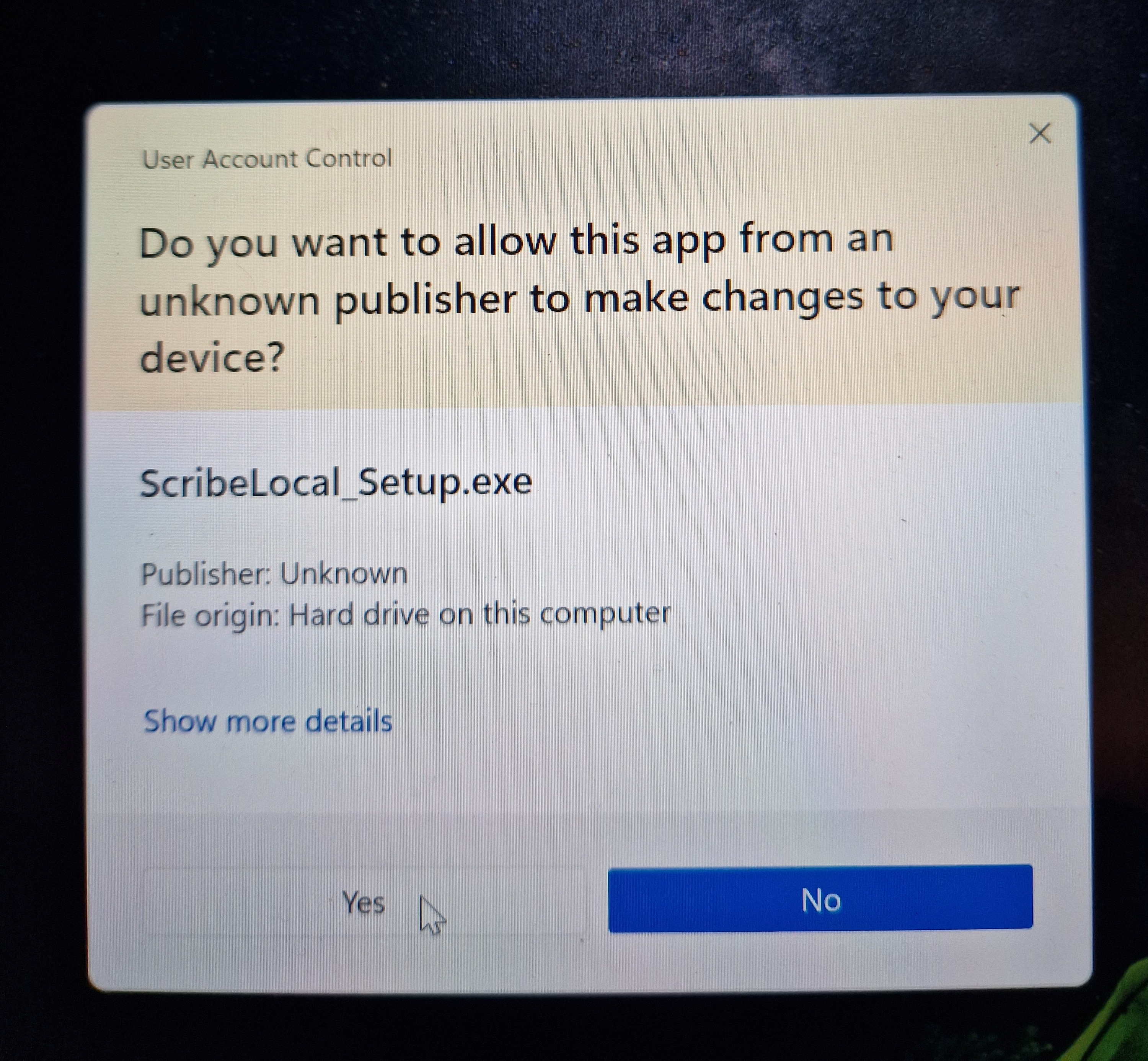
Click "Yes" to allow the installer to make changes to your device. This is a standard Windows security feature.
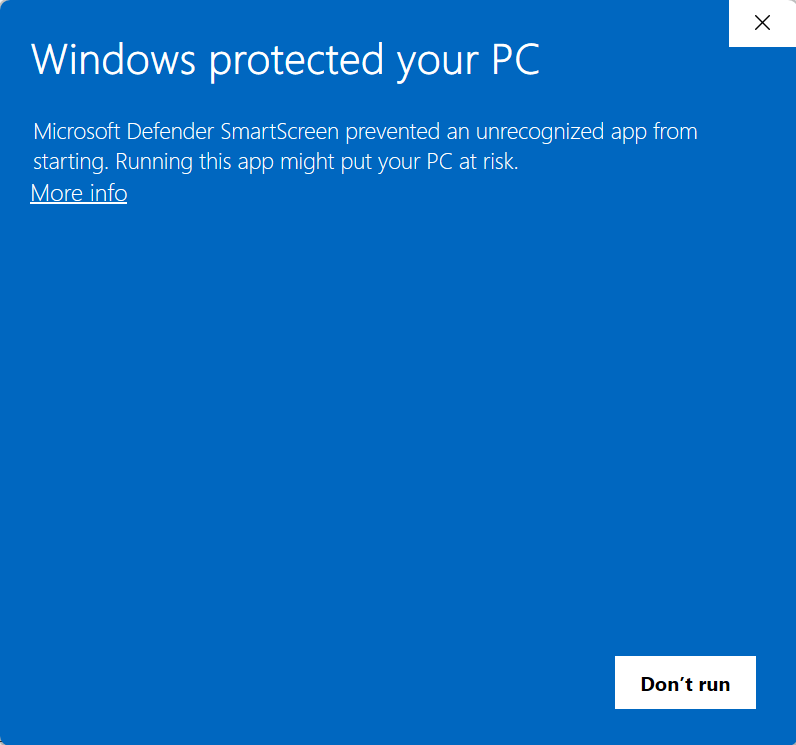
After clicking "Yes", you may see a Windows SmartScreen warning. Click on "More info" to see additional options:
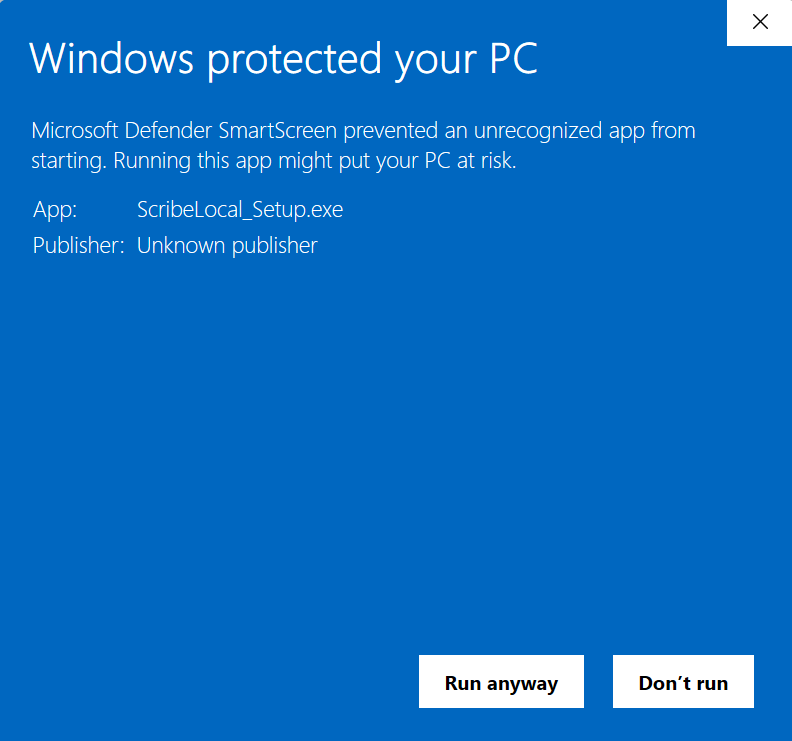
After clicking "More info", you'll see additional details. Click "Run anyway" to proceed with the installation:
Step 2: Installation Process
The installation wizard will begin. Follow the on-screen instructions:
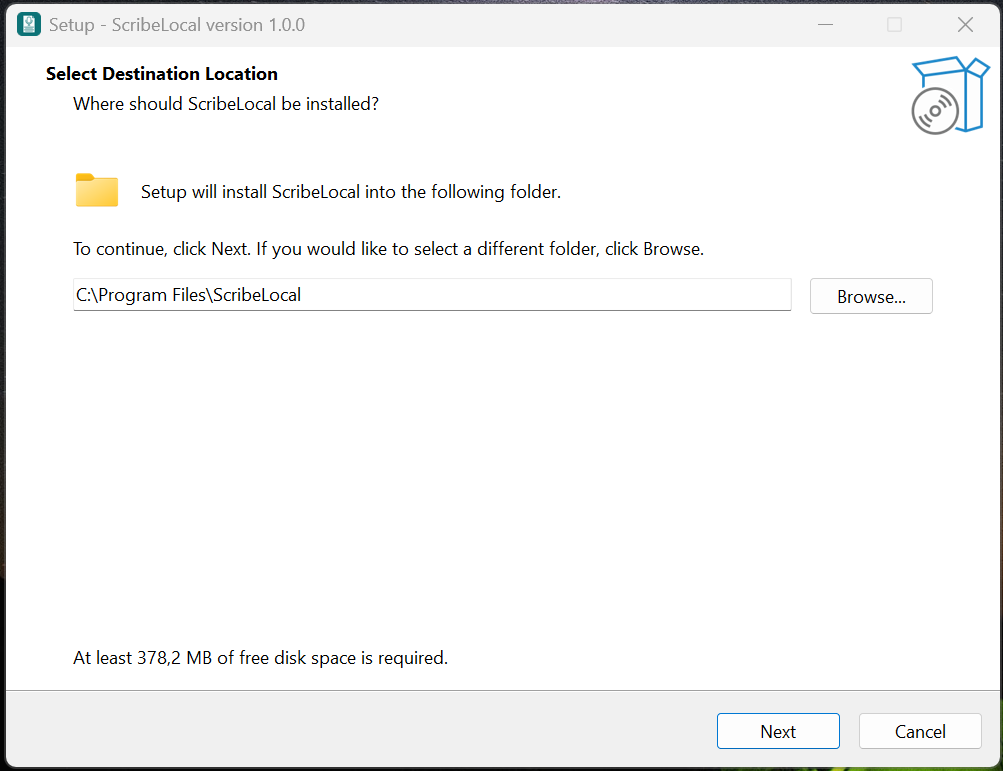
Continue through the installation steps:
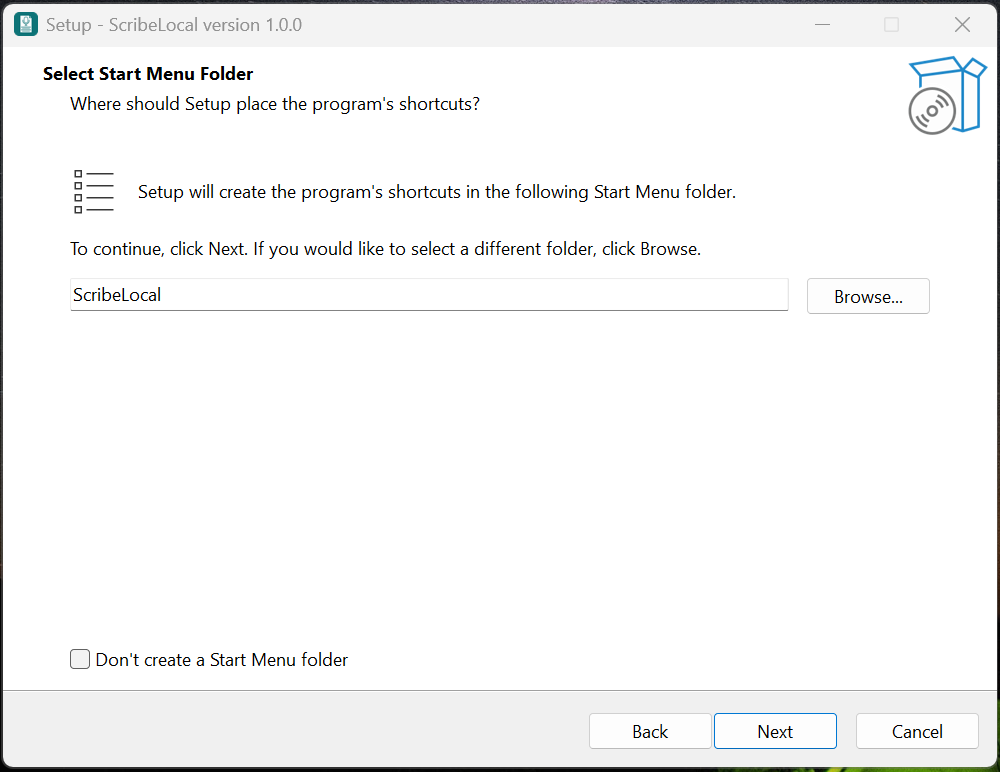
The installation will proceed automatically:
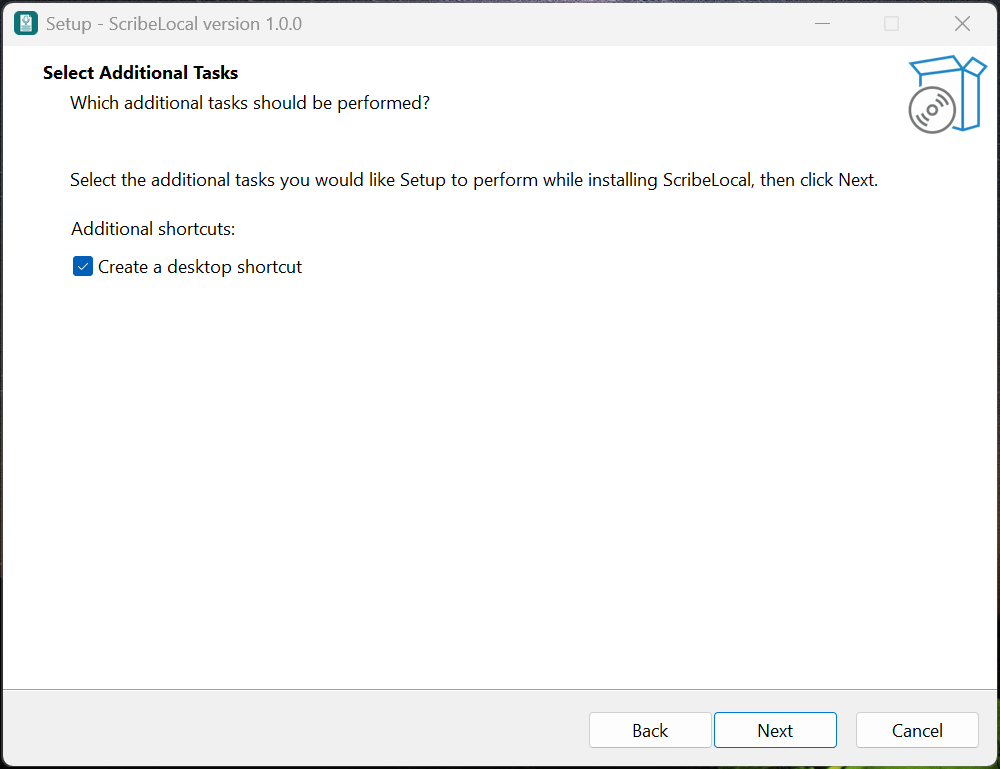
Installation is completing:
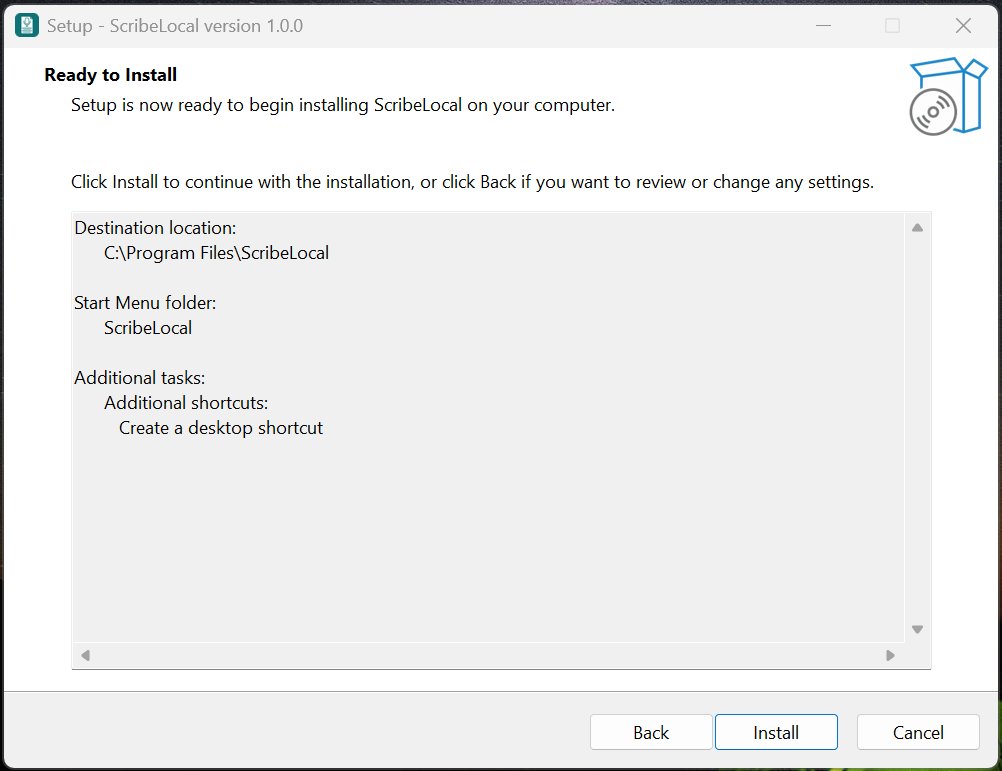
Installation is completing:
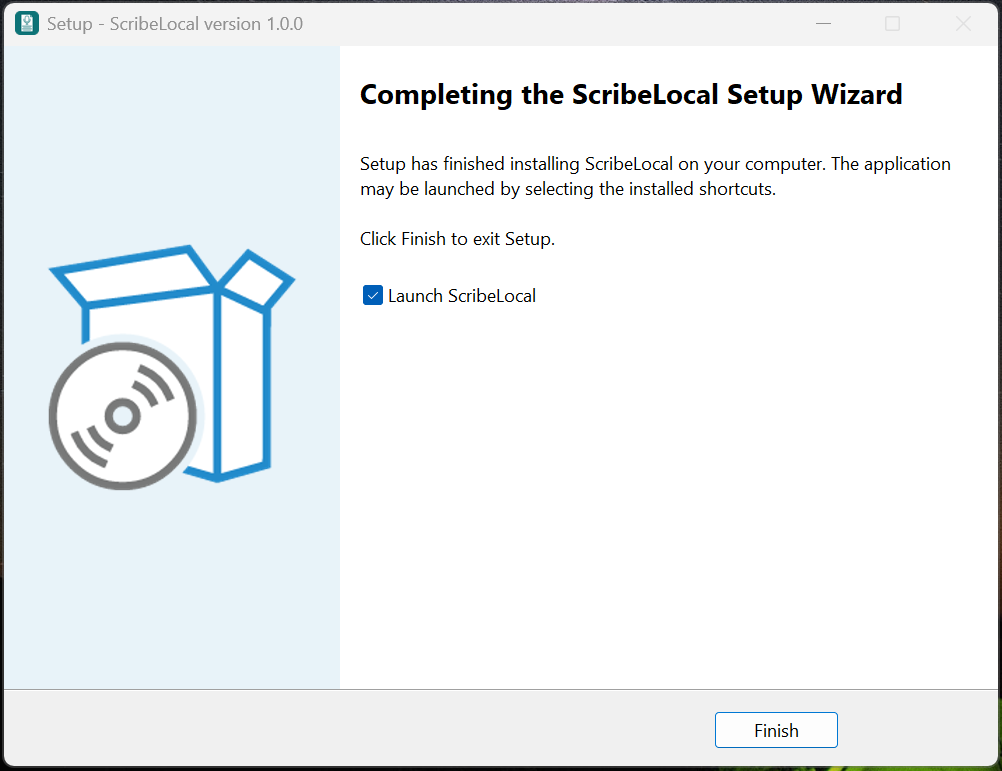
Installation complete! You can now launch ScribeLocal:
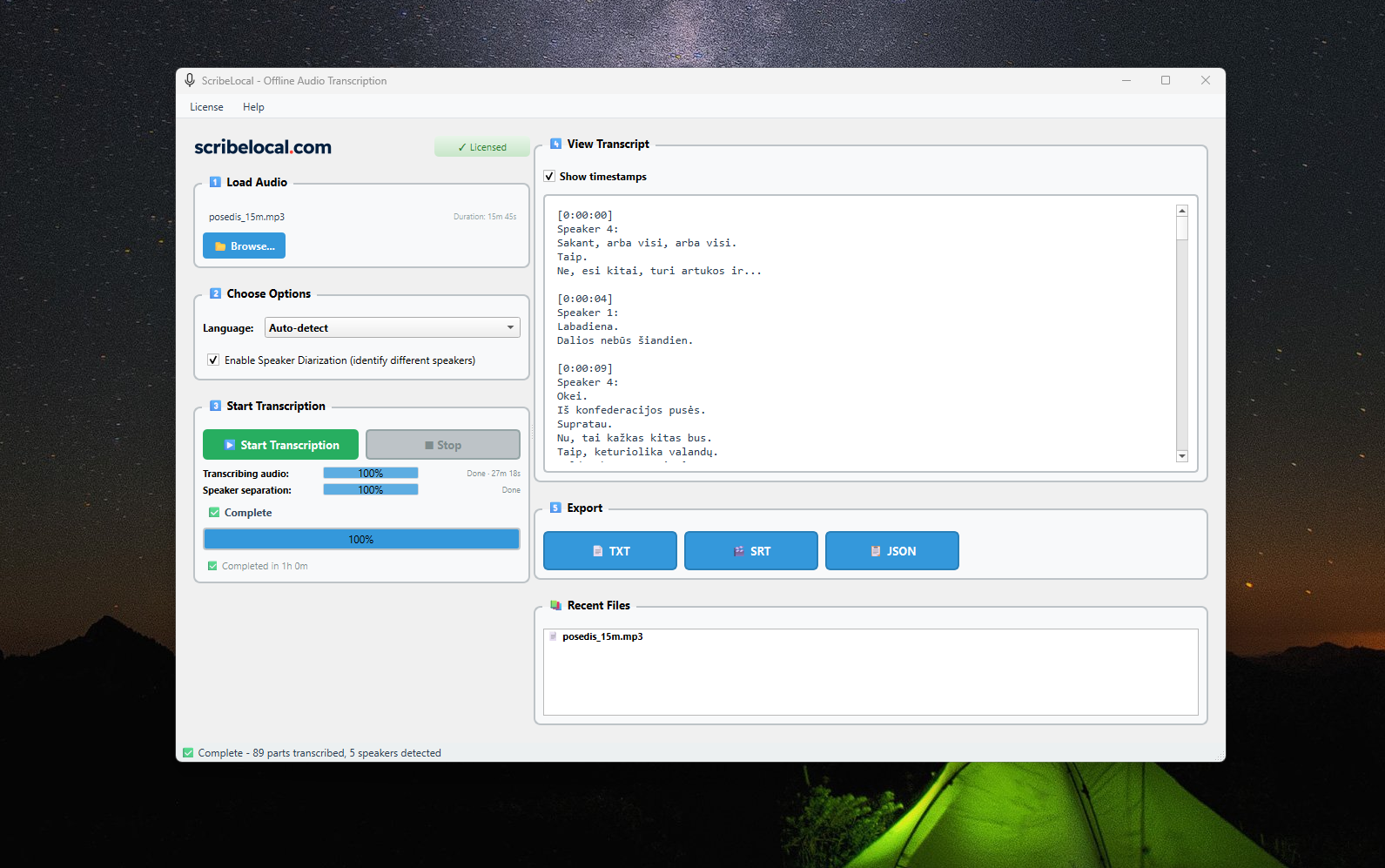
Step 3: Launching ScribeLocal
- After installation, you can launch ScribeLocal from your Start menu or desktop shortcut
- The app may take approximately 20 seconds to load on first launch - this is normal
- Your 7-day free trial will begin automatically - no registration required
- You can start transcribing audio files immediately by dragging and dropping them into the app
Troubleshooting
Make sure you clicked "More info" first, then "Run anyway". If the warning persists, you can right-click the file, select "Properties", and check "Unblock" at the bottom of the General tab.
Make sure you have administrator privileges and sufficient disk space. Try running the installer as administrator (right-click → Run as administrator).
Contact our support team at tomas@munno.lt and we'll be happy to assist you.